The above table will help you in identifying the missing drivers better.


Download the software first by following this link


It is easy to configure your Blogger account with Windows Live Writer. To configure Windows Live Writer with your account, you should have the following information ready


(If Windows Live Writer is not installed on your PC, follow the link to download it)
It is very simple to get the model number of your PC from command prompt
For this, open command prompt and type in: wmic csproduct get name and press Enter
The Model number will be displayed on the Command prompt screen,
If the Serial number label of your PC is lost, how will you retrieve the Serial number info easily?
The Serial number info can be easily retrieved from the command prompt by typing a simple command.
At the Command prompt screen, type: wmic bios get serialnumber and press enter
The Serial Number of your PC will be displayed on the Command prompt Screen.
You might have faced the issue Windows showing up a black screen saying
NTLDR is missing
Press Ctrl+Alt+Del to restart
Reason: HDD Cable loose contact
Corrupted NTLDR or NTDETECT.com file
Corrupted boot.ini file
Fix: Reseat the HDD cable
Fix the Boot.ini file your MBR repair disc
Insert your Windows Installation disk to the drive and restart the PC
When prompted to press any key to boot from the CD, press any key.
Once the Windows XP setup menu appears, press the "R" key to repair Windows.
Choose your windows partition by pressing 1 and hit Enter (Generally it is 1. But you have Multiple OS on your PC, this varies)
You will be then prompted for your administrator password, enter the password.
Copy the the NTLDR and NTDETECT.COM files from your Windows Installation disk though the Recovery Console. Here in this example, My Computer’s drive letter is F and OS partition is C
so in order to copy the mentioned files, i type the command below and press Enter
copy F:\i386\ntldr c:\
to copy ntdetect.com, type the below command and press Enter
copy F:\i386\ntdetect.com c:\
Once the the files are copied, take off the Windows Installation disc and type: EXIT and press enter to restart the PC


1. In start menu Search option, type: Backup
2. Choose Backup and restore Option
3. You will be presented with a window, there click Setup Backup
4. Choose your convenient location to save the backup. (if you wish to save the backup on a Pocket hard drive, you need to connect it to your PC)
5. choose the second option (Let me Choose)
6. Choose the files manually to include in the backup. (If you don't want to include a system image, uncheck the option: “include a system image of drives”)
7. Schedule a backup job if you want to make it automatic
8. Review the backup job and save the settings
9. If you click the “Save settings and run backup” button, it will initiate the first backup process
Once the backup is complete, you will find the Windows Backup file at the Location you selected (On your pocket HDD if you choose it as your backup media)
View Video Tutorial on how to do Automatic backup.
Blue screen errors are usually hardware or driver related, causing the computer to stop responding in order to prevent damage to the hardware. Blue Screen usually displays a Stop code which is greatly useful in identifying the problem.
A sample blue screen error
Common blue screen errors and its troubleshooting steps
Stop 0x000000ED (UNMOUNTABLE_BOOT_VOLUME)
Stop 0x0000007B (INACCESSIBLE_BOOT_DEVICE)
The above two errors always occur during start-up process.
Reason: Windows Kernel didn't find the system files at it’s default location.
Fix: Try switching the SATA control mode in the BIOS from AHCI to ATA (or vice versa)
Improperly seated data cables. try resealing the data HDD cables on both ends
Improperly configured BOOT.INI file (Launch recovery console and run BOOTCFG /REBUILD)
Corrupted file system (Launch recovery console and run chdsk /f /r)
Hard Disk failure. (diagnose and if not working, Replace HDD)
STOP 0x00000024 (NTFS_FILE_SYSTEM)
Reason: This stop error can occur when data corruption either on memory or disk happens
Fix: Reseat the memory and data cables properly
Run a thorough file system check from recovery console (chdsk /f /r)
Contact Helping Hands for advanced recover options
If the HDD is totally dead, replace hard disk
STOP 0x0000007E (SYSTEM_THREAD_EXEPTION_NOT_HANDLED)
STOP 0x0000008E (KERNEL_MODE_EXCEPTION_NOT_HANDLED)
Reason: The error is displayed when Windows Kernel encounters unexpected conditions. and to figure out this issue properly, Windows debugger tool is required. Contact Helping Hands for advanced help.
Fix: If the Stop error mentions about a faulty driver or a .dll file, Google it and get the information about it. Identify the program, disable or remove it.
Update the BIOS to the latest version
STOP 0x00000050 (PAGE_FAULT_IN_NON_PAGED_AREA)
Reason:This happens when system tries to access a non-existent memory area, Improperly seated memory, corrupted HDD etc.
Fix: If the Stop error mentions about a faulty driver or a .dll file, Google it and get the information about it. Identify the program, disable or remove it.
If the error happens during the start-up process, try booting to the Last Known Good Configuration.
Try reseating memory and HDD cables.
STOP 0x000000EA (THREAD_STUCK_IN_DEVICE_DRIVER)
Reason: This problem is caused by a display driver waiting for the video hardware to enter an idle state. This might indicate a hardware problem with the video adapter or a faulty video driver.
Fix: Make sure the drivers are up to date
Check the BIOS version and update if necessary
If not fixed try replacing the Video card.
To Convert a FAT or FAT32 partition to NTFS, you need to type in the command convert (drive name): /fs:ntfs
Example:
Convert f: /fs:ntfs
Note: Autorun.inf files are usually used to automate process. But in
some cases it could be a virus which is automated by the help of the
autorun.inf file. In that case there are two different ways to resolve the
problem.
DOS Mode file deletion
C:\>attrib -S -H -R C:\autorun.inf
C:\>del /F C:\autorun.inf
Replace C with your drive letter from which the autorun.inf file is to be removed.
1. Download the font by following this link: http://aaronsedna.freehostia.com/Rupee_Foradian.ttf
2. Save it on the Desktop (or to your convenient location)
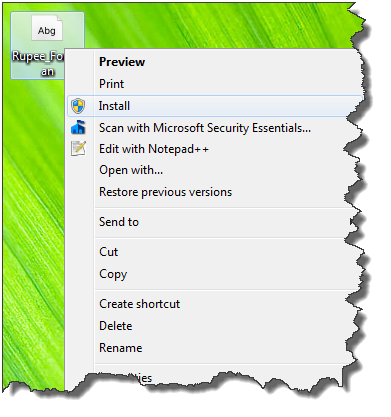
3. From the Desktop (the Location where you saved the font), Right Click and choose Install
4. Open a Word Document and choose the font as: Rupee Foradian
5. Now press the Grave accent symbol on your keyboard

6. You will get the ` symbol in the document.